 IrisBG
IrisBG 4.5.6.24111: shareable Garden Explorer searches and new system tasks
By IrisBG Team
- whats-new
We are pleased to share the details of our latest IrisBG software release with you.
In version 4.5.6.24111, we’ve further enhanced Garden Explorer’s display, making the experience even more user-friendly. You also now have the option to share links for automated searches for Family, Genus, Location, and Theme.
We have also made several more fields available for your reports and database queries. The functionality for our IrisBG-ArcGIS sync is now improved with new updates to mapping and GIS reports. Two new System tasks have been added to help you work more efficiently.
This article explains how each new IrisBG update can help steward and protect your plant collections.
🌱 Download and install the latest version from our dedicated Software page.
Important: Please ensure that the new version is installed on all computers used for IrisBG.
This software requires that you already have a valid license. To discuss the IrisBG package that best suits your garden, contact us.
Garden Explorer
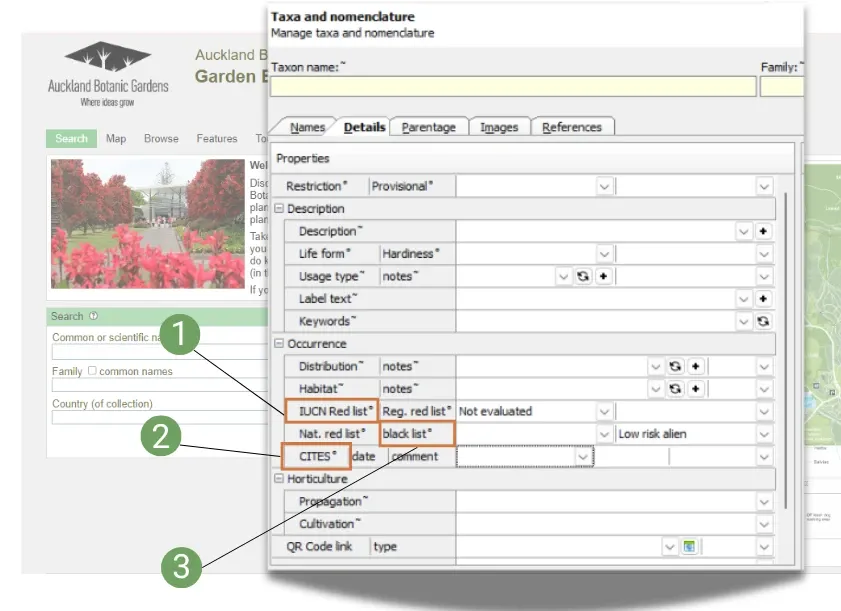
Three new Garden Explorer Search options are now available.
- Conservation status IUCN Red list
- CITES
- Invasiveness black list
Adding these searches to your Garden Explorer page will allow your visitors to learn how to identify plants with invasive tendencies or learn more about plant species that need protecting.
🌱 Please get in touch to enable any or all of these fields for your Garden Explorer Search page.
The IrisBG Taxa screen
Synonyms are not shown on Garden Explorer’s Browse page by default, but you can request to have them displayed.
🌱 Why have we excluded Synonyms from the Browse display page?
Excluding Taxon synonyms from the Browse display improves functionality for visitors.
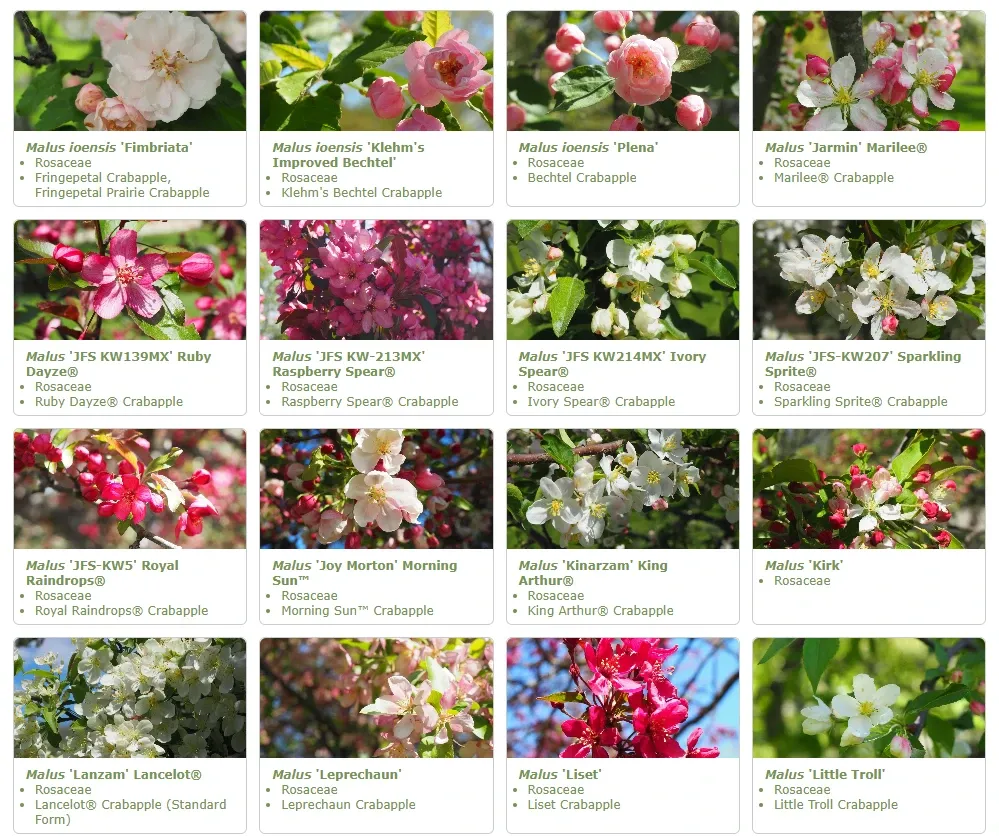
Display of the Malus collection on University of Wisconsin Madison’s Arboretum Explorer’s Browse page.
🍃Please note: To ensure visitors get all relevant information when looking for a plant on Garden Explorer, synonyms are still included and displayed when a search is performed.
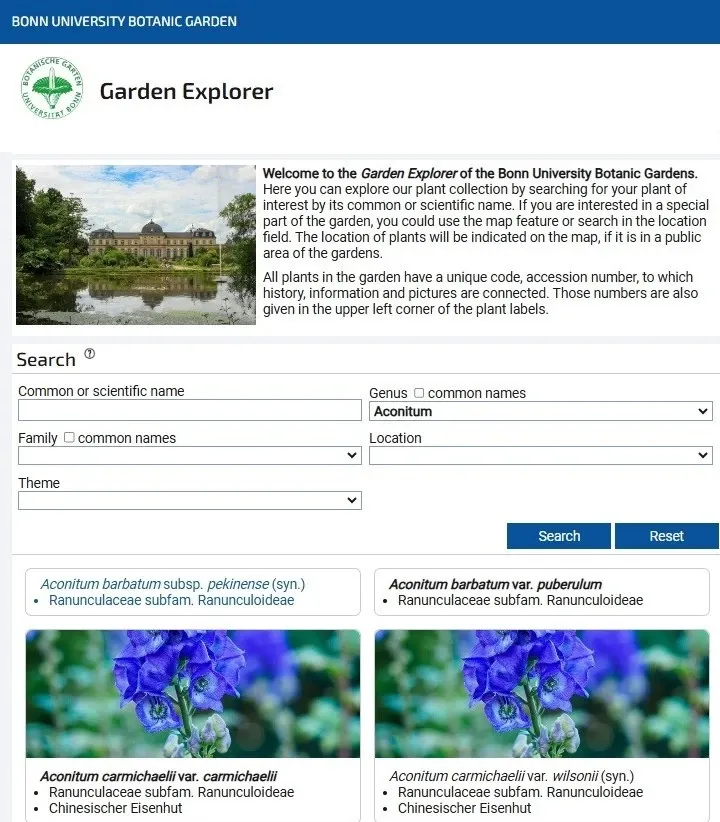
A search for the Genus, Aconitum displays Aconitum carmichaelii var. carmichaelii & its synonym on Bonn Unoversity’s Garden Explorer Search page.
We’ve added the use of more parameters for Garden Explorer’s Search page.
Previously, only links to Taxa and specific tours were available to create shareable links.
With the new update, you can now link automated searches and share to your garden’s main website or include in QR codes for your garden signs and plant labels.
To link an automated search, use the format to any of the query parameters* listed below in the main URL. Use the syntax, https://<my garden>/?param1=value¶m2=value.
- loc=location code long
- genus=genus name (scientific)
- family=family name (scientific)
- theme=theme code
loc=location code long
Use the location automated search parameter to reduce the amount of signage in the garden. Instead of creating and placing individual signs for each type of plant, you can now create one sign with a QR code linking to an automated search for the garden location.
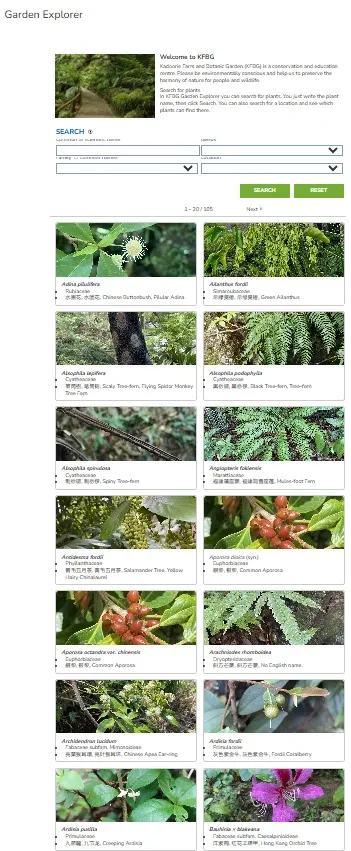
Kadoorie Farm and Botanical Garden’s Fern Walk
https://kfbg.gardenexplorer.org/?location=蕨類植物小徑
genus=genus name (scientific)
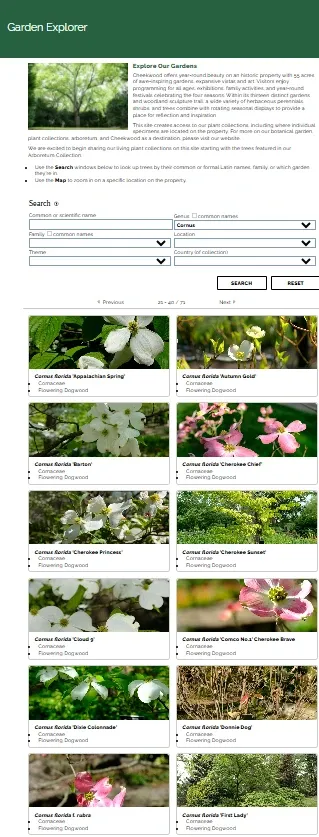
Is it Dogwood Day in your state? Apply the Genus parameter to create and automated search for all Cornus accessions in your collection. Promote the search link on your garden’s main website, social media, and QR codes.
Genus parameter format Example link: https://cheekwood.gardenexplorer.org/?genus=Cornus
family=family name (scientific)
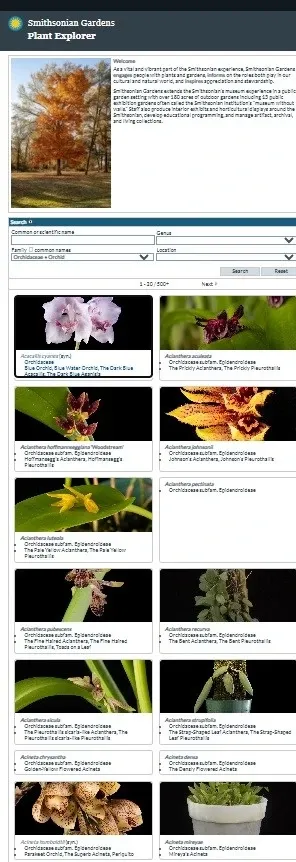
Highlight your nationally accredited Orchid collection (plants of multiple Genera) on your garden’s main website and other platforms by using the family automated search.
Family parameter format Example link:
https://si.gardenexplorer.org/?family=Orchidaceae
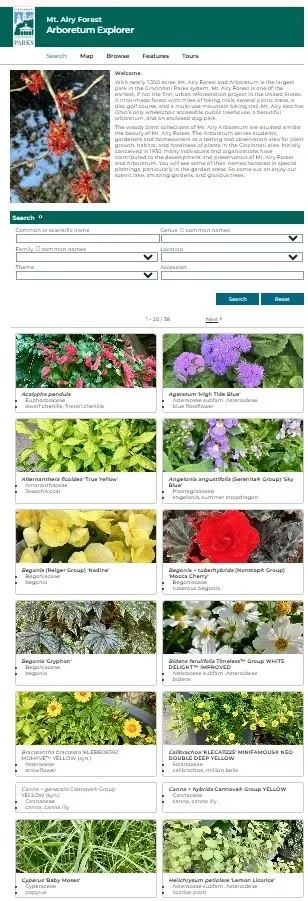
theme=theme code
Theme parameter format Example link:
https://mtairy.arboretumexplorer.org/?theme=SEA
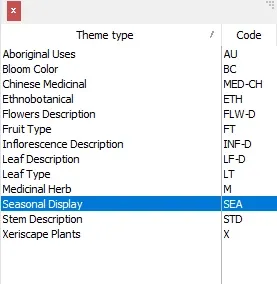
Theme window displayed on the Taxa: Details screen
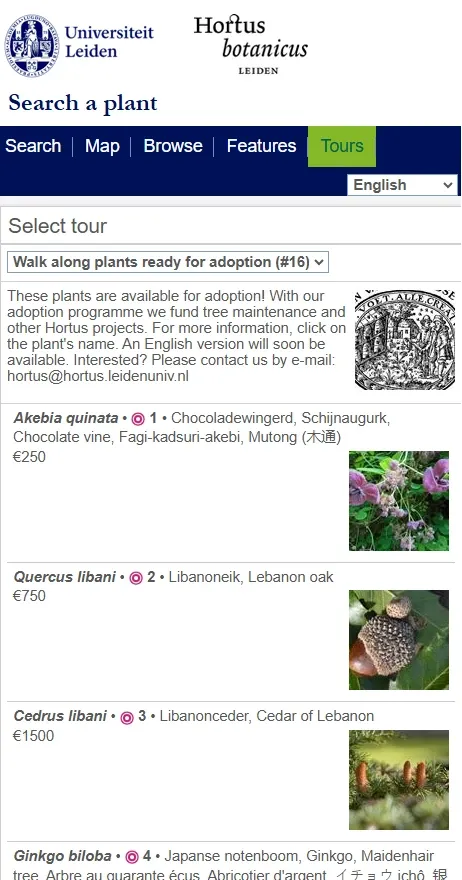
tour=tour no.
Tour parameter format Example link:
https://hortusleiden.gardenexplorer.org/tour.aspx?tour=16
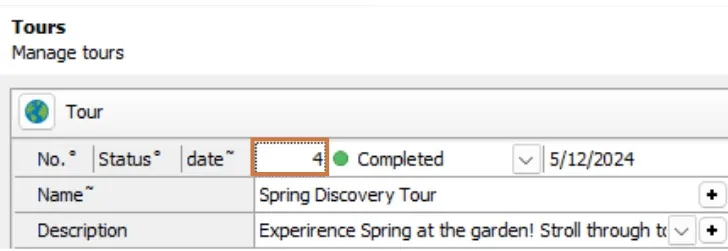
Events >Tours screen | Tour no. field
💡For all IrisBG Garden Explorer resources and guides, see our Knowledge Library articles under the Garden Explorer topic.
We have improved the layout for Garden Explorer’s Map page.
You will now see a much larger map display.
🌱Other enhancements to the Garden Explorer map display:
- When you select an accession point, the entry is displayed below the map.
- When you select a garden location point, all accessions listed within that location are displayed below the map.

Penn State’s Arboretum Explorer Map page
Labeling
We added Taxon description as a field option to include in label reports.
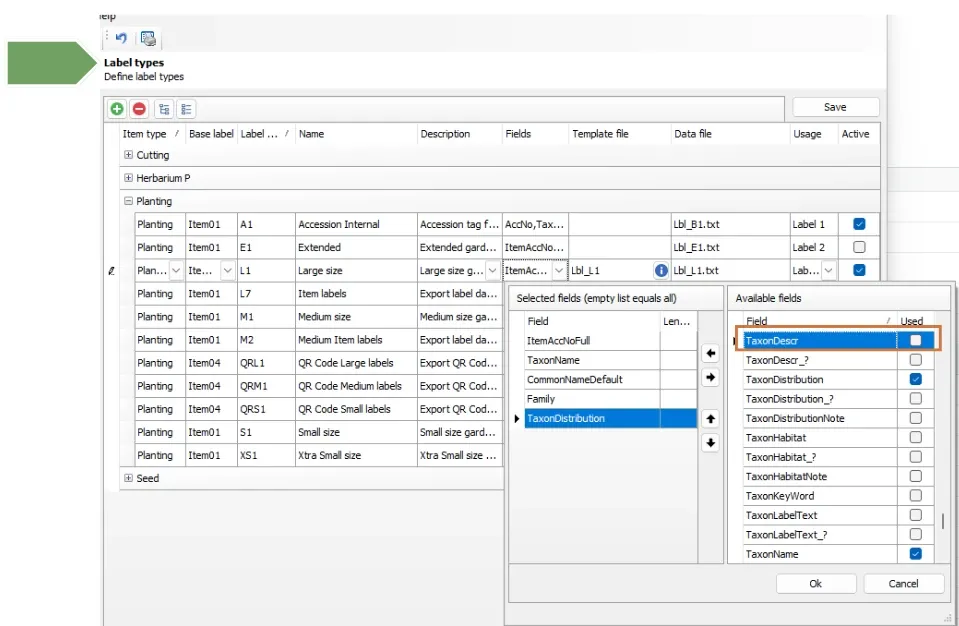
Definitions > Label types screen
Reports
Reports > Management
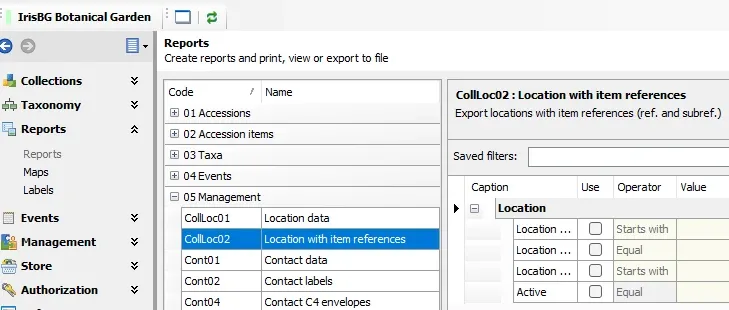
We added the new report CollLoc02 to Management Reports.
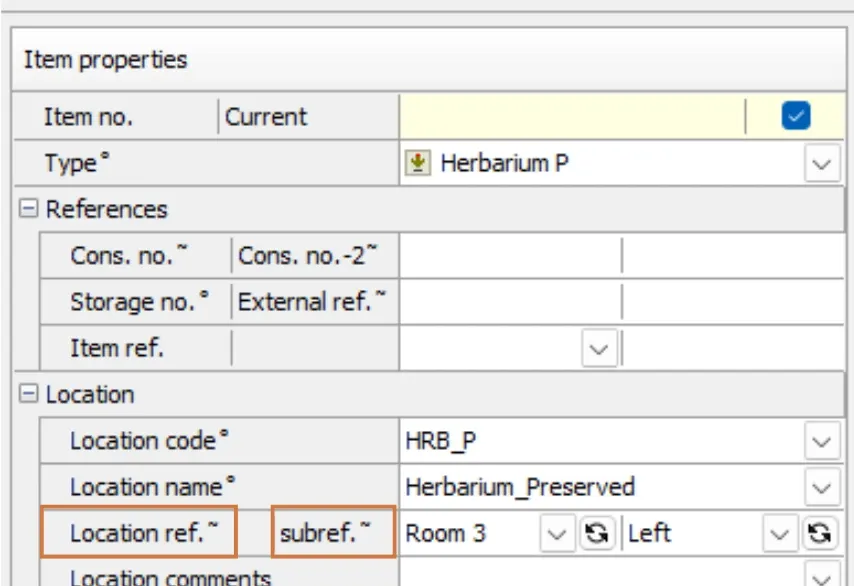
This new report creates a list that contains Location data with data tied to the fields, Location reference (LocRef) and Location sub-reference (LocSubRef) used for the location.
The LocRef & LocSubRef fields are located in the Accession | Items screen.
Reports > GIS
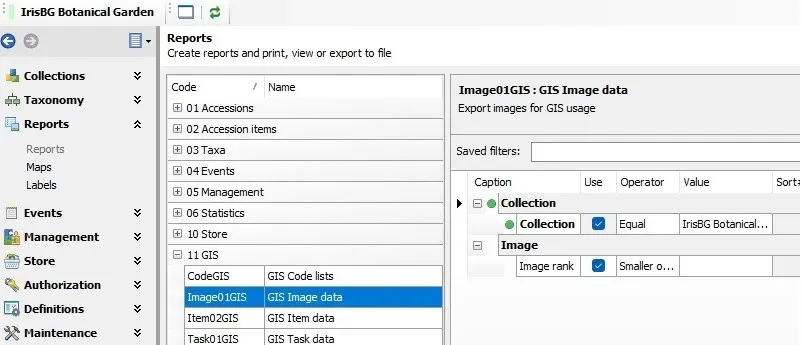
We added the new report Image01GIS to GIS reports.
You can now export reference images associated with individual accession items when using the IrisBG-ArcGIS sync.
💡Curious to learn more about mobile data collection with the IrisBG-ArcGIS sync? For related resources and guides, see our Knowledge Library articles under the Mobile data collection topic.
Reports > Maps
We fixed an error related to the Global maps Map01 and Map02.
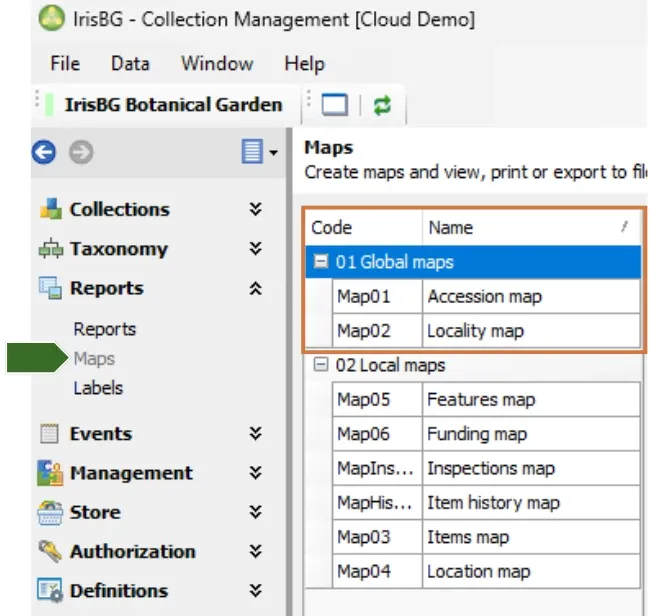
Previously, Map01 and Map02 reports allowed only positive whole numbers for the Locality Latitude and Longitude fields.
Now, you can enter coordinates as decimal numbers for these fields.
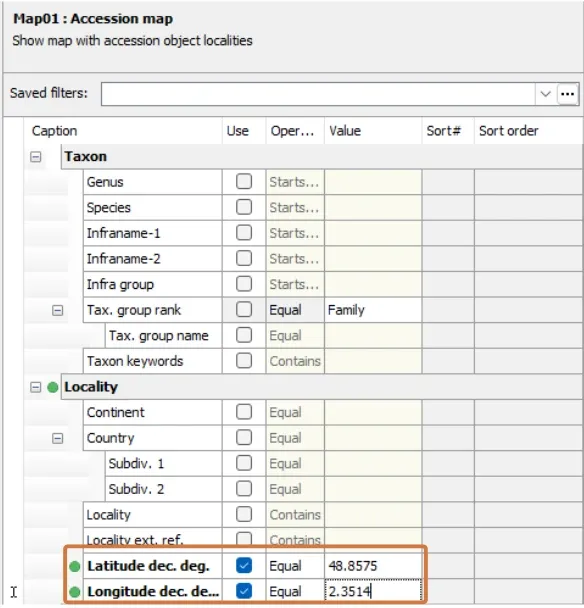
Reports > Map screen
Reports > Accessions and Items
We added Taxon description as a field option to include in reports.
Extract Taxon entry descriptions to support botanical education initiatives, plant-themed blogs for your website, marketing efforts, and more.
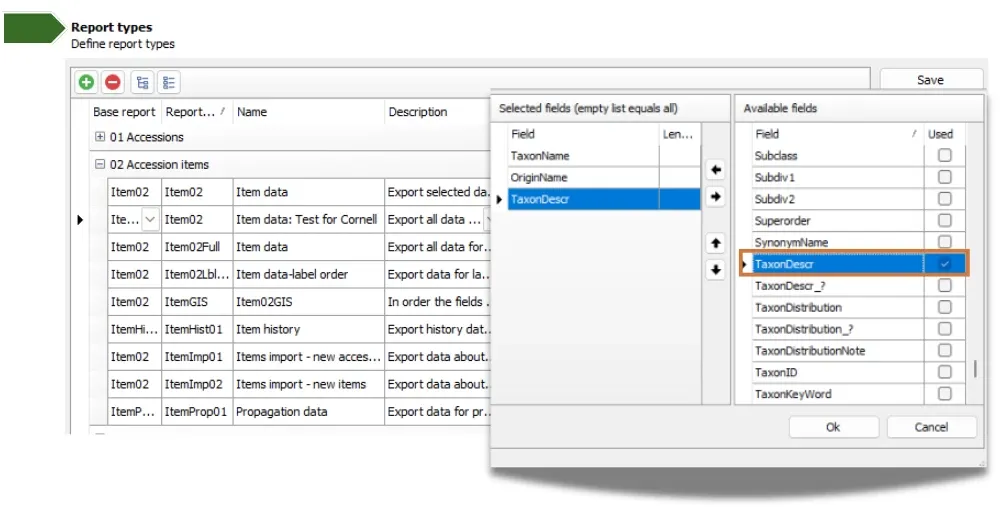
Definitions > Report types screen
Reports > Maps | Map03 Items map
You can now query by the fields, Origin and Label status in the Map03 report.
- Query by Origin: Create maps showing the location of accessions by origin for interpretative purposes.
- Query by Label status = not ok: Make a visual of all locations tied to plant accessions that need a label to help staff find plants and place new labels.
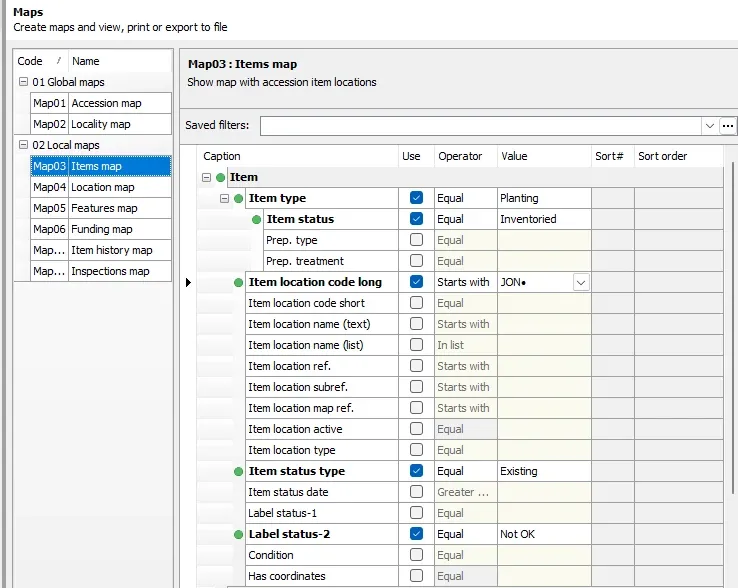
Map 03 Items Report Query builder
Advanced Search & Item Management
We added the Conserved number (Cons. no.) fields from the Accession Item screen to the Item Management and Advanced Search query builders.
Generate a list of all accession items with a common herbarium or propagation number.
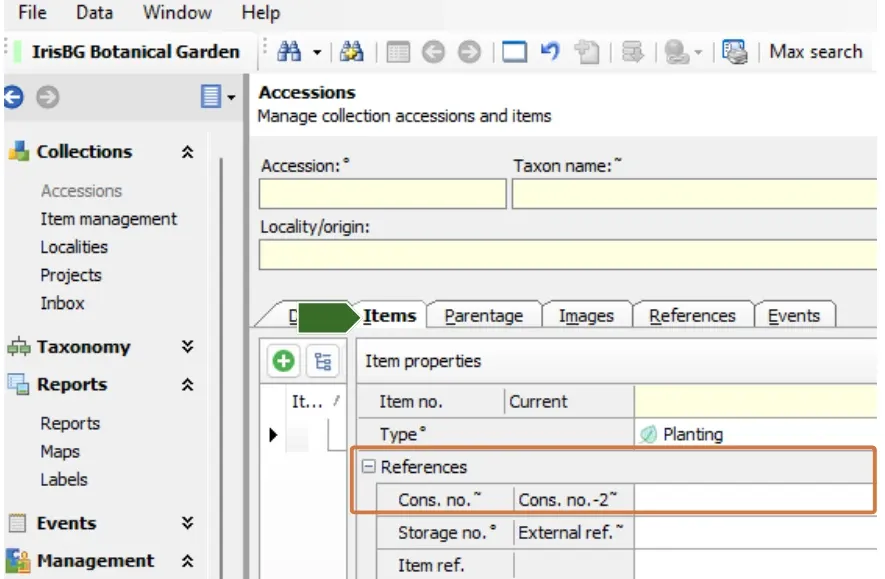
The Accession Items screen
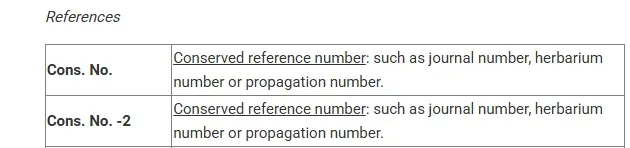
Image of field definitions from the Knowledge Library article, IrisBG Fields Defined: Accession Screens
Taxa & Taxonomic Groups
We have repaired the error for the POWO verification link.
For those using POWO as their name link, many of the verification links were leading to a “page not found” page. The issue was related to the source we use for POWO data and it is now fixed.
The Taxa Names screen
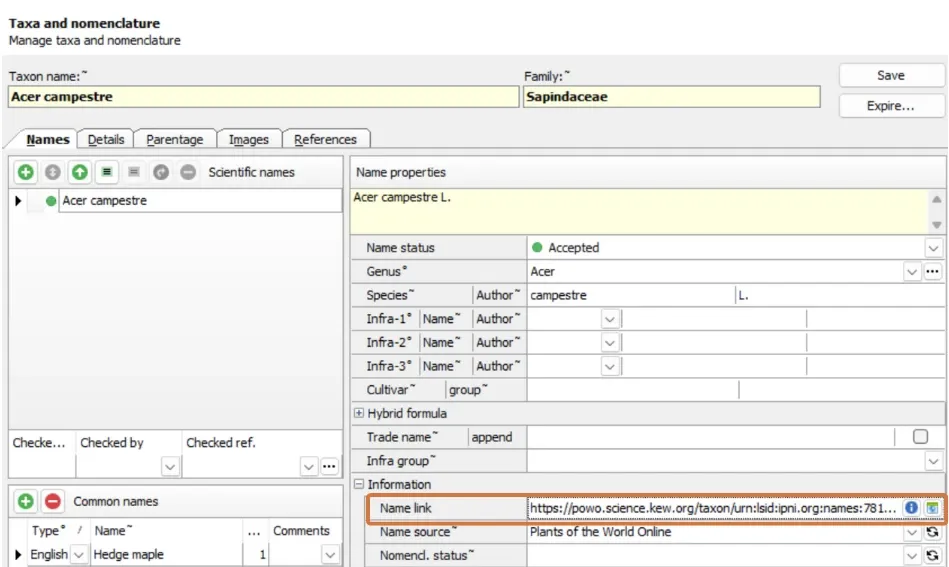
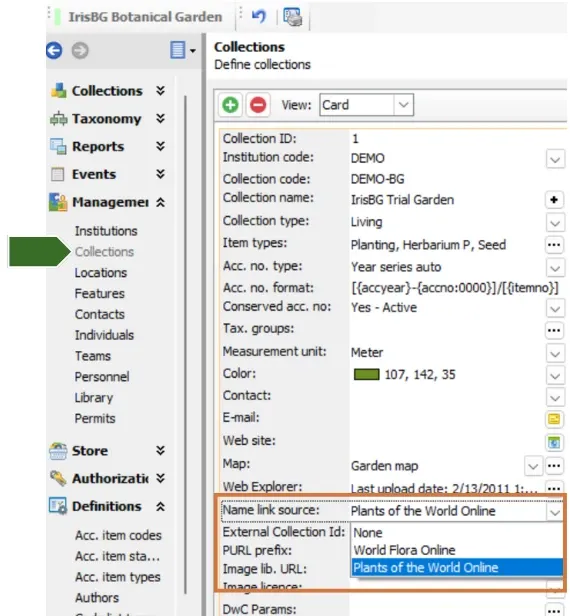
🌱 There are two options available in IrisBG for the data verification link, POWO and WFO.
Read more about the Name link field and taxa verification in the Knowledge library article, IrisBG Fields defined: Taxonomic Groups.
System tasks
We added two new System tasks.
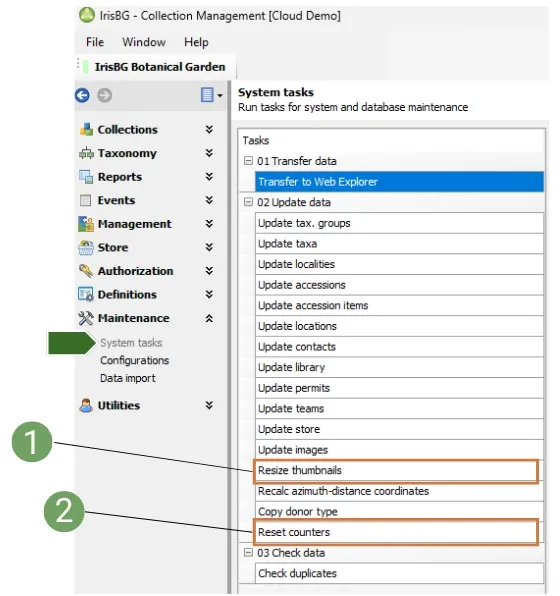
- You can now perform a System task to reset counters for accession numbers. This may be necessary when a wrong accession number has been entered, so the next automatic number is not wrong.
- Resizing thumbnails will increase the size of existing thumbnail images which enhances the image display when using the IrisBG-ArcGIS Sync.
⚠️ The task should be run only once to resize existing thumbnails.